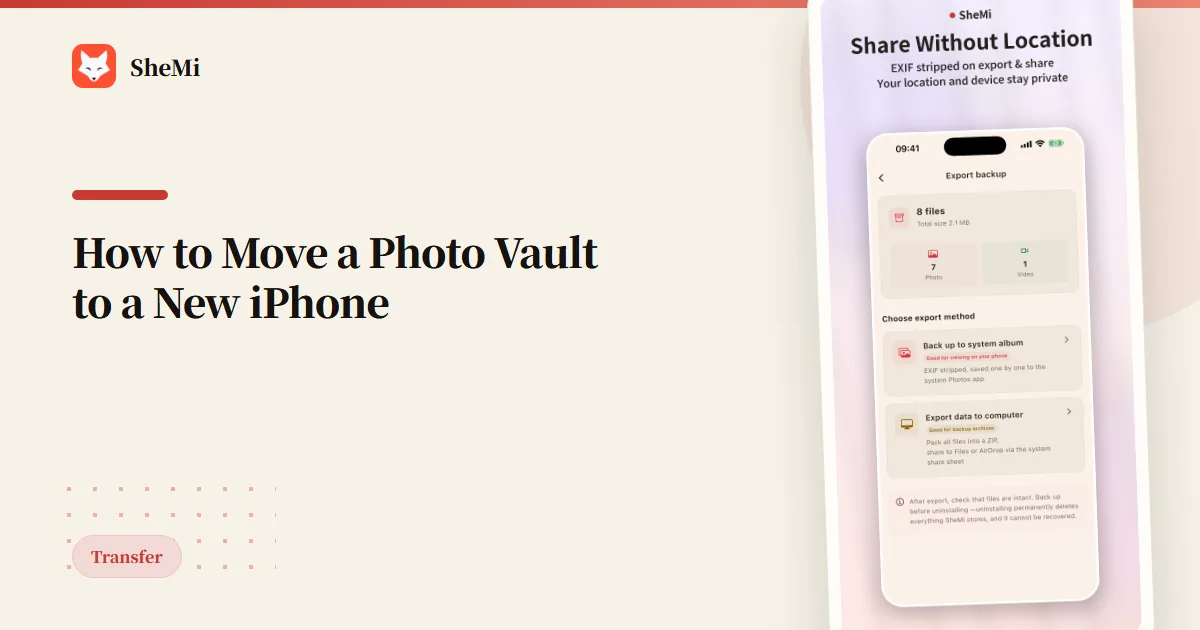
Moving a photo vault to a new iPhone is the moment most people discover whether their vault is a real storage space or a locked box with no key. A photo vault app transfer to computer (or to a new phone) comes down to one question: can you get the files out in a form you can bring back in? This guide compares the three methods that actually work, including the one-step backup and restore SheMi added in version 1.1.0.
Before you move anything: three checks
Every vault app handles export differently, and the differences matter more at migration time than at any other moment.
- What format does it export? Individual photos to the camera roll, a ZIP archive, or a proprietary backup file. A ZIP or folder you can open is portable; a proprietary format may only be readable by the same app.
- Does export preserve structure? Albums, groups, and notes are often lost when photos go out one by one through the camera roll. If your vault has organization you care about, look for a backup format that carries it.
- Can you restore without the old phone? If the old device must be present to restore, a dead phone means a dead vault. A backup file you control is the safer architecture.
Method 1: export to the camera roll
The simplest path, and the one to avoid if you have organized photos. Exporting to the camera roll puts the images back into the system library on the new phone — which is exactly the place your vault existed to keep them out of. Groups, notes, and favorites usually do not survive, and the photos become visible to every app with library access.
It works for a handful of images. For a vault with hundreds of photos and years of notes, it is a downgrade disguised as a transfer.
Method 2: photo vault app transfer to computer
Export the vault to a computer, keep the archive, then bring it back into the app on the new iPhone. This is the method that survives lost phones, because the backup lives outside both devices.
- Export over Wi-Fi or with Save to Files. Most vault apps that offer a real backup will hand you a single file — a ZIP is the portable choice.
- Open the file on your computer and confirm the contents look right: photos, video, and any notes folder. If you cannot open it, you cannot verify it.
- Copy it to the new phone with AirDrop, iCloud Drive, or a cable — or, in apps that support it, restore directly from a browser on the computer.
- Import into the app on the new iPhone and spot-check a few items before deleting anything from the old device.
Two cautions. A plain ZIP of personal photos is only as private as where you store it — an external drive you control is fine; a shared cloud folder is not. And keep the old phone untouched until the restore is verified on the new one.
Method 3: one-step backup and restore (SheMi 1.1.0)
In SheMi, version 1.1.0 rebuilt this flow around a single backup file. The update replaced piece-by-piece re-importing with two steps:
- Back up: export one ZIP of your vault — photos, videos, groups, notes, and favorites — over Wi-Fi, with Save to Files, or straight to a computer.
- Restore: on the new iPhone, choose the backup and everything comes back in one step. Restoring can also be started from a computer browser if the file is already there.
Two boundaries worth knowing. It is SheMi-to-SheMi restore: it moves your vault between iPhones, and does not merge into the system photo library. And the backup is a standard ZIP — no password layer of its own — so store it on a drive you trust. If you still have a password-protected backup from an earlier test build, SheMi can restore it after asking for the password.
If you are upgrading phones anyway, the order that avoids panic: back up from the old phone, restore on the new one, verify a few photos and notes, and only then wipe the old device. Our trade-in checklist covers the wipe side.
The three methods compared
| Camera roll export | Manual ZIP to computer | One-step backup (1.1.0) | |
|---|---|---|---|
| Photos survive | Yes | Yes | Yes |
| Groups and notes survive | Usually no | Depends on format | Yes |
| Photos enter the camera roll | Yes | No | No |
| Works if the old phone dies | No | Yes | Yes, if you kept the ZIP |
| Steps | Many | Several | Two |
Frequently asked questions
Does restoring a backup replace what is already on the new phone?
It restores your vault into SheMi on the new device. It is designed for moving between iPhones — it does not import into the system photo library, and it does not merge with a different vault.
Do I need iCloud to move a photo vault?
No. A local ZIP transferred over Wi-Fi, AirDrop, or a cable works without iCloud. In fact, for a privacy-focused vault, keeping the backup off cloud storage is usually the point.
Can I move a photo vault from iPhone to Android?
Not with a one-step restore. The practical path is exporting photos out of the vault, then importing them into an Android app. Organization such as groups and notes generally does not survive the move.
What happens if I lose the backup file?
The vault still lives on the phone it was created on. If that phone is gone too, the photos are gone — which is why the backup should be exported before a phone change, not after something goes wrong. See photo vault recovery for what is and is not recoverable.
Is the backup encrypted?
New SheMi backups are plain ZIP archives, so treat the file like the photos themselves. If you need an encrypted container, place the ZIP inside an encrypted disk image or drive you control. For the iPhone-side options, see encrypting your iPhone backup.
Moving a vault should not feel like a leap of faith. Check what the app exports, keep a copy outside both phones, restore before wiping, and the new iPhone becomes a continuation rather than a fresh start.