You can't remove a photo from the iPhone camera roll and keep it on the phone in the same form — the camera roll is the library, and every album is just a view over it. What you can do is hide photos from camera roll views, stop new photos from landing there, or keep photos in an app that never touches the library. Here are the real options, what each one actually does, and which situations each fits.
Hide photos from camera roll: the built-in option and its limits
iOS has one built-in tool for this: the Hidden album. Open a photo, tap the share button, choose Hide, and the photo leaves the main library view, the Years/Months/Days view, and search results. It reappears only under Albums → Hidden (or Utilities on older iOS).
What hiding does not do is just as important:
- It doesn't move the file. The photo stays in the photo library's data, synced to iCloud Photos if that's on. Hidden is a flag, not a vault.
- It doesn't lock anything by itself. On iOS 16 and later you can require Face ID to open the Hidden album (Settings → Photos → Use Face ID), but before that it opened like any other album — and plenty of people never turn the switch on.
- Apps with full library access can still see hidden photos. The hidden flag doesn't block API access, so a cleanup app, a chat app, or anything else with photo-library permission can read them.
So the built-in answer to "hide photos from camera roll" is really "remove them from most views." That's enough for tidiness and casual glances. It is not enough for a borrowed phone, a shared device, or a cloud sync you don't control.
The question behind the question: remove from camera roll, keep in an album
One of the most-searched versions of this problem is "remove photos from camera roll but keep in album." On iOS, that has a one-word answer: impossible. Albums are not folders — they're saved searches over the one library. There is no second copy to keep. Removing a photo from the library removes it from every album that showed it.
If what you actually want is a separate, hidden copy, you have two honest routes:
- Export the photo out of the library — save it to Files, or into an app with its own storage — then delete it from Photos if you want it gone from the library.
- Stop it entering the library in the first place — shoot or import into an app that stores photos in its own sandbox, so the library never has a copy to hide or delete.
Stop new photos from entering the camera roll
For photos you haven't taken yet, the cheapest fix is architectural: don't let them land in the roll.
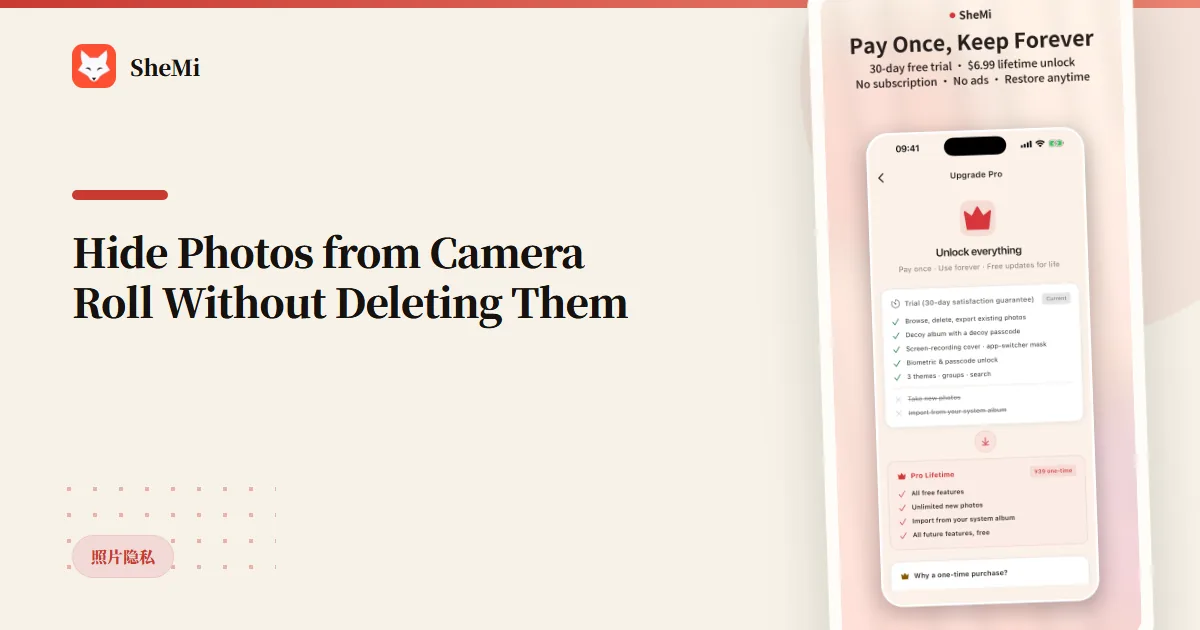
- A sandbox camera app. Apps like SheMi save photos to their own storage instead of the photo library. Nothing appears in the Photos app, iCloud doesn't sync it, and other apps can't read it — there is nothing to hide afterward because the library never contained it. See the private camera checklist for what to verify in any such app.
- Check your camera settings. The Camera app itself always saves to the library — there's no switch to change that. Screenshots and downloaded images also go to the roll automatically, which is how "hidden" collections keep growing without anyone noticing.
The distinction matters because most people ask about hiding only after the photo has already entered the library — the cleanup approach. The sandbox approach moves the question earlier: the photo is private from the moment it's taken, and the cleanup problem disappears.
Options compared
| Method | Leaves the library? | Hidden from views | Synced to iCloud | Reversible |
|---|---|---|---|---|
| Hidden album | No | Yes (most views) | Yes | Yes |
| Hidden album + Face ID lock | No | Yes | Yes | Yes |
| Export to Files, delete from Photos | Yes | — | Only if Files is synced | Re-import anytime |
| Sandbox camera (SheMi) | Never enters | — | No (excluded from backup) | Export anytime |
Which method fits your situation
- Just tidying your library — the Hidden album is enough. Turn on the Face ID lock in Settings while you're there.
- Borrowing your phone out or family sharing — Hidden won't help; anyone with the passcode can reach it, and family iCloud accounts keep syncing. Move the photos into an app with its own passcode and storage instead. See the six methods ranked for the full comparison.
- Cloud copies worry you — hiding doesn't stop iCloud sync. Read what actually keeps photos off iCloud before relying on the Hidden album.
- You want a locked drawer going forward — a sandbox camera means new photos never touch the roll at all. SheMi's private camera checklist explains the four things to verify in any such app.
Frequently asked questions
Does hiding a photo delete it from iCloud?
No. A hidden photo still syncs to iCloud Photos if sync is on. Hiding changes the flag, not the file, and not the cloud copy. To remove it from iCloud you have to delete it — or keep it out of the library in the first place.
Can I remove a photo from the camera roll but keep it in an album?
Not with the built-in tools. Albums are views over the single library, so removing a photo from the library removes it from every album. To keep a private copy that isn't in the library, export it to Files or to an app with its own storage first.
Do hidden photos show up in search?
No — hidden photos are excluded from search, widgets, and the main library views. That's a display-level exclusion, though: apps with full photo-library access can still read the files.
Is there an app that hides photos without deleting them?
Two kinds. Cleanup apps move photos around inside the library, which still leaves the files where other apps can reach them. Sandbox apps like SheMi store photos outside the library entirely — they never enter the camera roll, so there's nothing to delete or hide, and export always works.
The short checklist: tidy-up → Hidden album with Face ID lock. Cloud copies → turn off iCloud Photos or move the files out. Borrowed phones and private work → photos that never enter the library, taken and stored in a sandbox. Two settings and one habit cover most of it — and for the photos that matter most, keeping them out of the camera roll from the start removes the question entirely.