You can hide photos when lending your phone in two layers: a 60-second Guided Access setup that locks the phone inside one app before you hand it over, and a longer-term fix that keeps private photos out of the camera roll altogether. Neither requires jailbreaking or saying no to a friend who needs to make a call. The first layer stops someone from browsing; the second means there is nothing to browse. Here is the complete setup, step by step.
- Why an unlocked phone is an open camera roll
- Guided Access: lock the phone into one app
- The 3-second handoff routine
- The iOS features that do not actually hide photos
- The permanent fix: hide photos when lending your phone
- The 10-second checklist before you hand it over
- Frequently asked questions
- Related reading
Why an unlocked phone is an open camera roll
Lending your phone usually means lending it unlocked — and an unlocked iPhone is a key to everything on it. The person holding it can open the Photos app and scroll the entire camera roll, including the Hidden album, which keeps photos out of the main grid but not out of the library. They can swipe through Messages, and they can read lock-screen notifications with photo previews still attached.
This is the structural fact that makes most "privacy" features weak in this scenario. Face ID, a device passcode, app locks — they all guard entry points. The moment you hand the phone over already unlocked, those entry points are open. What decides how much a borrower can see is what you do in the seconds before the handoff, and where your private photos live in the first place.
Guided Access: lock the phone into one app
Guided Access is Apple's built-in way to lock an iPhone into a single app. Once a session is running, the Home bar, the app switcher, Control Center and the side button do nothing: the phone is just that one app — a dialer, a maps screen, a photo — until someone enters the Guided Access passcode. It was designed almost exactly for this moment.
Setup takes about a minute, and it only needs to be done once:
- Turn it on. Settings → Accessibility → Guided Access → toggle on. You will be asked to set a Guided Access passcode — make it different from your device passcode. Someone who knows your unlock code still cannot end the session.
- Turn off the Face ID exit. Under Passcode Settings there is an option to end Guided Access with Face ID (or Touch ID). Leave it off. If it is on, the person holding the phone can end the session by pointing it at your face — and in a lending scenario, your face is right there.
- Make triple-click start it directly. Settings → Accessibility → Accessibility Shortcut → check only Guided Access. Otherwise a triple-click opens a selection menu, and you will be tapping through it while the other person watches.
To start a session: open the app you want the person to use first (Phone, Maps, Camera), then triple-click the side button on Face ID models, or the Home button on older ones. The order matters — triple-clicking first locks whatever screen is showing, which might be your home screen.
Before tapping Start, glance at the options screen:
| Option | What it does | When to use it |
|---|---|---|
| Motion | Allows or blocks shake and rotate | Leave on |
| Keyboards | Shows the on-screen keyboard | On for a phone call or a search |
| Touch | Off = the screen stops responding to touch | Showing a single photo or document |
| Time Limit | Ends the session automatically | Set it when you know roughly how long they need — it saves you the awkward "can I have it back" |
Ending the session takes a triple-click and the passcode. One warning worth repeating: there is no "forgot my passcode" flow here. If you lose the Guided Access passcode, the only reliable way out is erasing and restoring the device. Pick a number you cannot forget, and store it in a password manager.
The 3-second handoff routine
Guided Access is the machine; the handoff routine is the habit. Between "can I borrow your phone" and the moment it leaves your hand, you have about three seconds. Do these three things, in this order:
- Exit private apps completely. Swipe them away from the app switcher, not just to the background. If auto-lock has not kicked in yet, a backgrounded app is one accidental swipe from reopening.
- Lock the phone. Press the side button. A locked phone is a brick until someone unlocks it — and that someone should be you.
- Unlock it yourself, then hand it over. For a call, open the Phone app first; if Guided Access is set up, start the session now. The phone leaves your hand already in a safe state.
While it is in someone else's hands, keep it in sight when you can — not to watch them, but so you can step in with "let me get that for you" if they tap somewhere unexpected. If it has to leave your sight, the Time Limit option above is your backstop.
When it comes back, spend ten seconds checking three places:
- The current screen. Is it the screen you handed over? If not, something else was opened.
- The app switcher. Swipe up and look for apps you did not open.
- Notification Center. Were sensitive notifications expanded or tapped?
The iOS features that do not actually hide photos
Most people reach for the wrong tools in this scenario, so a quick tour of what does not protect you:
- The Hidden album. It removes photos from the main grid, not from your library. They still sync to iCloud when iCloud Photos is on, and once your phone is unlocked, unhiding them takes two taps. It is a tidy drawer, not a safe. For what real iPhone private album apps can and cannot do, we compared the four main architectures in a separate guide.
- App locks and Screen Time. They guard one app's entry point. The camera roll needs no app — the Photos app opens to whoever holds the unlocked phone.
- Notification previews. By default, lock-screen and banner notifications can show message text and photo previews. If you lend your phone around people, set Show Previews to "Never" or "When Unlocked" under Settings → Notifications → Show Previews.
All three share one assumption: the photos are already in the camera roll. That assumption is the real problem.
The permanent fix: hide photos when lending your phone
Guided Access and the handoff routine are excellent gates, but they start from the same premise: the photos are sitting in the camera roll, and you are defending access to them one lending at a time. There is a cleaner premise. If a photo never enters the camera roll, it is never indexed by the Photos app, there is nothing for iCloud Photos to sync, and lending your phone becomes unremarkable: you hand it over, they make their call, and there is nothing else to find.
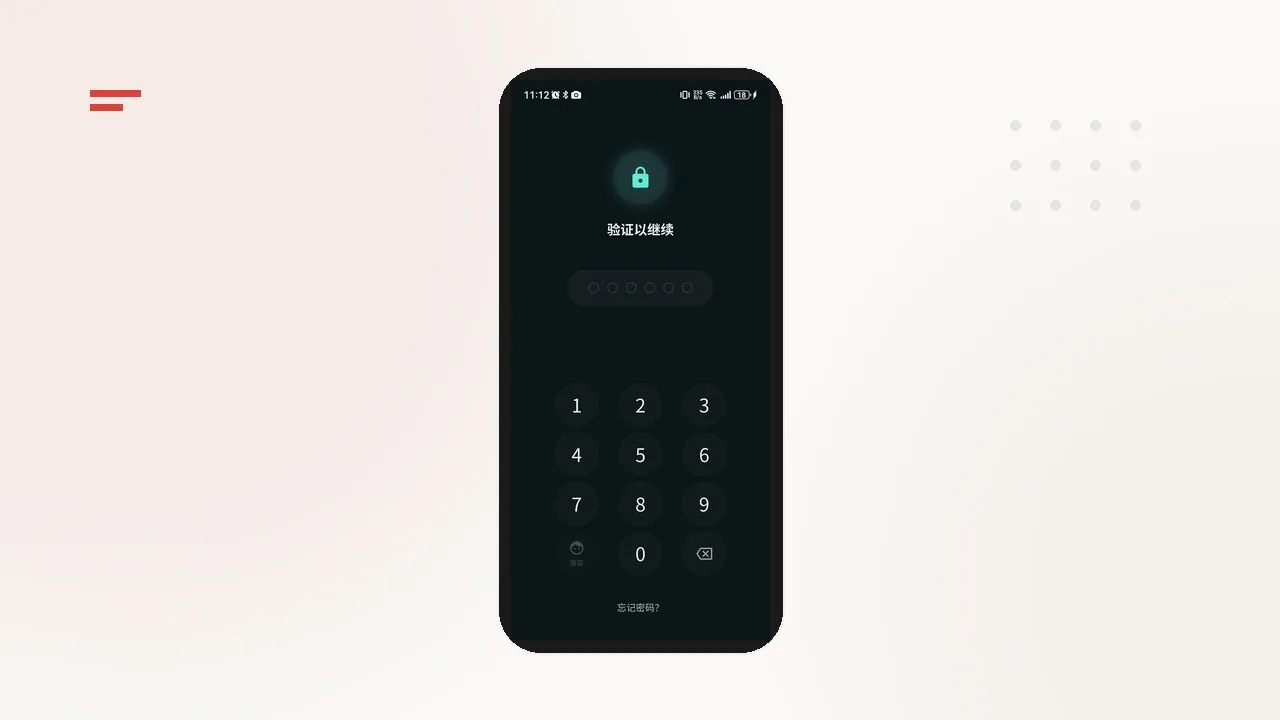
That is the privacy-camera approach — capture goes straight into an app's private sandbox instead of the system library. SheMi works this way: photos taken in the app never touch the camera roll, stay on the device, and sit behind the app's own passcode. Combined with a decoy passcode for the rarer "open your phone and show me" moment, the sensitive part of your photo life simply does not exist in the places a borrower would look.
If you want to go this route, the setup is minimal: download SheMi, grant camera access, and take the photos you would rather keep private there. It offers a 30-day free trial and a $19.99 one-time purchase (US).
The 10-second checklist before you hand it over
- Once — takes a minute: Guided Access on; passcode different from your device passcode; Face ID exit off; Accessibility Shortcut set to Guided Access only.
- Every time — takes 3 seconds: exit private apps → lock → unlock and hand over, with the target app opened first.
- When it leaves your sight: set a Time Limit.
- When it comes back: check the screen, the app switcher, Notification Center.
- For the photos themselves: move the private ones out of the camera roll — a sandbox camera app keeps them out from day one.
Lending your phone does not have to be a privacy gamble. Guided Access turns the phone into a single-purpose device for the borrower, the handoff routine handles the seconds around it, and source isolation removes the photos from the equation. Set up the first two this week, and the next time someone asks to borrow your phone, the answer is just "sure."
Frequently asked questions
Does Guided Access hide my photos?
No. It locks the phone into a single app so the borrower can't reach the photo library — but it doesn't remove or hide anything.
Is there a faster option if I haven't set it up?
Lock the phone before handing it over and unlock it yourself into the app they need. Guided Access is the repeatable version of the same idea.
What if they ask to use the camera?
Open the Camera app first, then start a Guided Access session locked to it — the borrower can take a photo but can't browse the library.