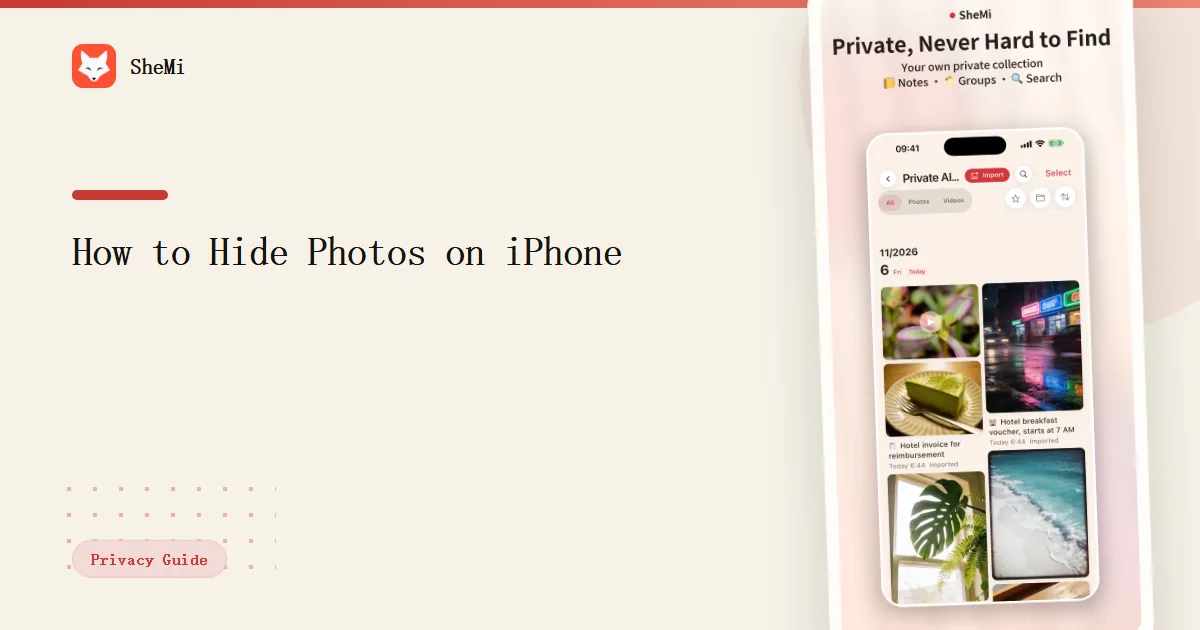
How to hide photos on iPhone: there are six methods, and they are not equally good. The right one depends on a single question — who are you hiding them from? A casual glance at your phone needs something very different from a partner asking to borrow it, or someone insisting you unlock it in front of them. This guide ranks every common method by who it actually stops, and where each one fails.
- First, the threat model that decides everything
- Method 1: Lock the Photos app itself (iOS 18+)
- Method 2: Use the Hidden album — and actually lock it
- Method 3: Delete the photos and rely on "Recently Deleted"
- Method 4: A third-party vault app
- Method 5: Guided Access (for lending, not hiding)
- Method 6: Keep the photos out of the library in the first place
- Which method should you use?
- How to hide photos on iPhone: the short version
- Frequently asked questions
- Related reading
First, the threat model that decides everything
Before picking a method, name the scenario. Most people choose a "hide photos" feature based on the wrong one:
- A casual glance — someone picks up your phone, scrolls a little.
- A borrowed phone — you hand it over unlocked for a call or a map.
- A demanded unlock — someone stands next to you and asks you to open your album.
- Copies leaving the device — iCloud sync, backups, and third-party apps reading your library.
Each method below is rated against these four. The order is roughly "least effort first," not "best first."
Method 1: Lock the Photos app itself (iOS 18+)
Since iOS 18 you can require Face ID to open any app, including Photos. Long-press the Photos icon on the Home Screen → Require Face ID → confirm. From then on, opening Photos asks for Face ID, Touch ID, or your device passcode.
Stops: a casual glance. Someone who picks up your unlocked phone cannot open the Photos app without your face or passcode.
Fails against: anyone who knows your passcode (the lock accepts it as a fallback), and every photo is still in your library and still syncing to iCloud Photos if that's on. It also does nothing when you hand the phone over already unlocked.
Method 2: Use the Hidden album — and actually lock it
Select photos → Share → Hide. They leave the main grid and move to the Hidden album. In iOS 16 and later the Hidden album is locked with Face ID or your passcode by default.
One setting is worth knowing: Settings → Photos → Show Hidden Album. Turn it off and the album disappears from the Photos interface entirely — the photos stay hidden until you turn it back on. That's the strongest form of this method, because there's no album to stumble into.
Stops: scrolling through your library. Without the album visible, most people won't even know it exists.
Fails against: anyone who knows your passcode — the Hidden album's lock accepts it. And the photos are still photos: they are in your library, they sync with iCloud Photos, and any app you've given Full Access to Photos can read them.
Method 3: Delete the photos and rely on "Recently Deleted"
People do this, and it doesn't work. Deleted photos sit in Photos → Albums → Recently Deleted for 30 days, and anyone who can unlock your phone can restore them in about three taps. After 30 days they're gone — which is the opposite of what you wanted if the plan was to keep them.
Stops: nothing worth relying on.
Fails against: anyone curious enough to check Recently Deleted. Skip this method.
Method 4: A third-party vault app
Vault apps import photos into a locked space inside the app. The good ones support Face ID, and some add a decoy passcode that opens a harmless-looking album instead of the real one.
Stops: someone opening the app. The vault itself is locked, and with a decoy, even being asked to open it can be handled.
Fails against: the original. Unless you delete the photo from your library after importing — every time, without forgetting — the copy in your camera roll stays exactly where it was, and iCloud keeps a copy too. The vault is a second lock on a door that's still open. Most people also won't pay a subscription for this: the mainstream vault apps charge monthly or yearly.
Method 5: Guided Access (for lending, not hiding)
Guided Access locks the phone into a single app until you enter a passcode. It's the best tool for the "can I borrow your phone" moment — but it does not hide anything. It's covered in detail in our guide to lending your phone.
Stops: the borrower opening anything other than the app you locked.
Fails against: everything else — it ends the moment you unlock, and it has no effect on copies in iCloud or apps with library access.
Method 6: Keep the photos out of the library in the first place
Every method above starts from the same assumption: the photo is already in your camera roll, and you're adding a lock in front of it. The alternative is to never put it there. A privacy camera writes each photo straight into the app's own sandbox at capture — there is no camera roll entry to hide, no library for apps to read, and nothing for iCloud Photos to sync.
That's how SheMi works: photos taken in the app stay in its private vault, behind a passcode and Face ID, with a decoy passcode for the "open it for me" moment. The photos never exist in the place the other five methods are trying to protect. If you want a deeper comparison of how these architectures differ, see our iPhone private album app guide and the camera privacy settings audit.
Stops: all four threats at once — casual glances, borrowed phones, demanded unlocks (with the decoy), and cloud copies.
Fails against: nothing on this list, but it only protects photos you take or import into it. For the photos already sitting in your camera roll, methods 1–4 are still what you have.
Which method should you use?
| Method | Effort | Casual glance | Knows your passcode | Lent unlocked | Cloud copies |
|---|---|---|---|---|---|
| Lock the Photos app (iOS 18) | 10 seconds | Yes | No | No | No |
| Hidden album + hide the album | 1 minute | Yes | No | No | No |
| Delete + Recently Deleted | — | No | No | No | No |
| Vault app (import + lock) | 5 minutes | Yes | Depends on app | With decoy: yes | Only if originals deleted |
| Guided Access | 1 minute setup | Yes, while active | — | Yes | No |
| Privacy camera (never in library) | Ongoing habit | Yes | Yes — nothing to find | Yes | Yes — nothing to sync |
A practical combination for most people: lock the Photos app for daily friction, hide the album as a second layer, and keep the photos that would actually hurt you out of the library entirely. Settings buy you time against the casual scenarios; only the last method changes what's there to find when someone is determined.
How to hide photos on iPhone: the short version
- For a glance: iOS 18 app lock on Photos — 10 seconds, meaningful friction.
- For a borrowed phone: Guided Access, not hiding methods.
- For a demanded unlock: a decoy passcode — hiding alone can't answer "open it."
- For peace of mind: stop the photo from entering the camera roll in the first place.
Frequently asked questions
Does hiding photos remove them from iCloud?
No. Photos in the Hidden album still sync with iCloud Photos when that's enabled, and appear on your other devices.
What's the difference between hiding and locking?
Hiding takes photos out of view; locking controls who opens the app. Neither removes the photo from your library — see our guide to locking photos for that side.
Can someone restore a photo I deleted?
Yes, within 30 days — deleted photos sit in Recently Deleted and can be restored with your device passcode.