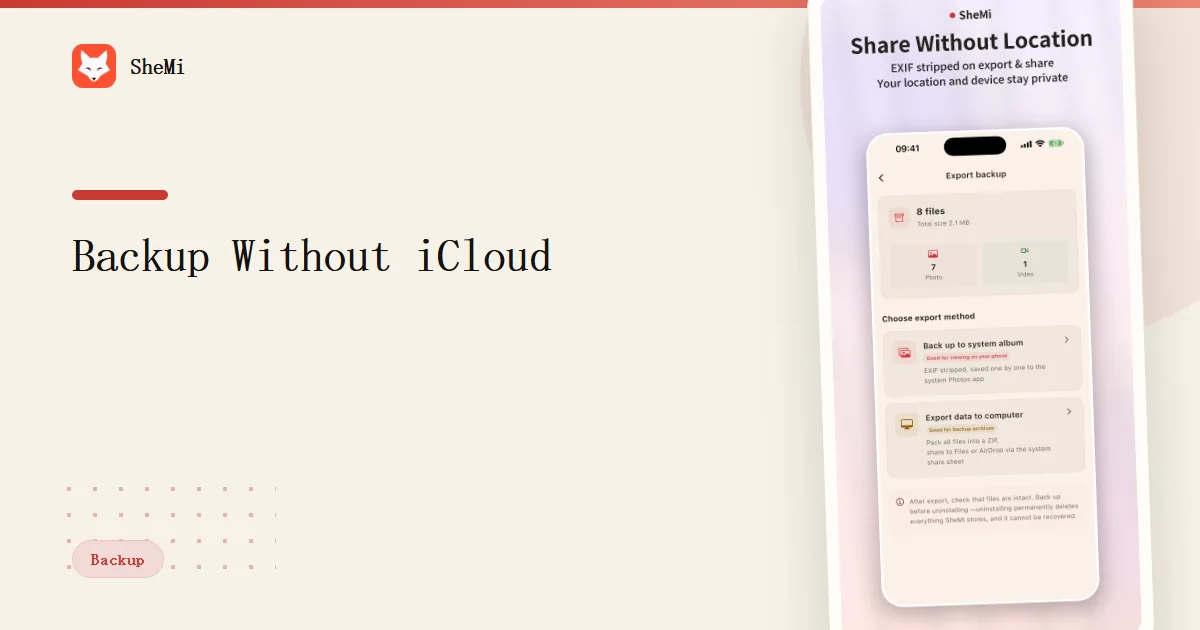
iPhone backup without iCloud is not one method but four, and they are not equal. The choice that fits depends on what you back up for: recovering after losing a phone, moving to a new one, or keeping an offline copy of photos no cloud should hold. Here is what actually works, what each route really protects, and the combination that covers most people.
| Route | What it protects | What it costs |
|---|---|---|
| Local backup to a computer (Finder / Apple Devices) | Everything on the device, photos included | A cable, disk space, and remembering to run it |
| Encrypted local backup | The same, plus keychain and health data | One more password you must not lose |
| Selective export | Only what you choose to save | Manual work, spread over many apps |
| No backup at all | Nothing | The full risk of a lost or broken phone |
iPhone backup without iCloud: the computer route
A local backup writes a snapshot of the phone to your computer over a cable. On a Mac running macOS Catalina or later it happens in Finder; on Windows it happens in the Apple Devices app (the successor to iTunes). The steps are the same shape in both: connect the phone, trust the computer, and start a backup.
Two facts decide whether this route fits you:
- It backs up everything on the device. Photos, messages, app data, settings — one snapshot. If iCloud Photos was never turned on, this is where your library actually lives.
- It only protects what ran since the last backup. A weekly backup means a week of new photos can disappear with the phone. Decide the interval before something goes wrong, not after.
Encryption changes what the snapshot contains — an encrypted local backup also carries keychain passwords and health data, categories the unencrypted one skips. The mechanics and the one unforgiving rule (lost password = unrecoverable backup) are in the encrypted local backup guide.
What the backup does not cover
Understanding the gaps matters more than the features:
- Things already living in iCloud. iCloud Photos, iCloud Drive files, contacts and calendars stay in their own services and are not duplicated in the local snapshot.
- Purchases. Apps, music and movies re-download from the App Store; the backup restores their data, not the binaries.
- Apple Pay cards and biometric enrolment. Both are re-added manually on a new device — a deliberate security choice, not an oversight.
The selective route: export what matters
If the goal is narrower — say, keeping a private photo collection off every cloud and out of every backup — a full backup is the wrong tool. It copies everything, which means it also copies what you wanted to leave behind.
The selective route is slower but precise: export the photos you care about to a computer over the local network or with Save to Files, then keep them somewhere you control. For photos taken inside an app sandbox, the app's own export is the only way out — which is why moving a photo vault to a new iPhone starts with the export question, not the backup question.
Which combination actually works
Most people are best served by two layers, not one:
- A local backup on a schedule — weekly is a sensible default — for the everything-on-the-device case. Encrypt it if keychain and health data matter.
- Selective exports for the irreplaceable — photos you cannot re-create, saved to an encrypted external drive, updated after trips and before trade-ins.
This is the same two-layer logic as the iCloud backup question: one layer for convenience, one for control. The difference is where the control layer lives — on hardware you hold, instead of in a cloud account someone else manages.
Where a sandbox camera changes the math
Every backup strategy above starts from the same assumption: the photos are in your library, so backing up means copying the library. A sandbox camera removes that assumption. Photos taken inside the app never enter the camera roll, are excluded from iCloud backup by design, and are exported only when you choose — so the question "where do I back these up" never includes "the library, the cloud, and every backup of both." SheMi works this way: capture goes straight into app-private storage, and export is always in your control.
What changes if you add iCloud back for some things
Nothing forces an all-or-nothing choice. A common setup keeps iCloud Photos off (the library stays out of the cloud), turns iCloud Backup off too (so the local backup is the only snapshot), and keeps small services like contacts and calendars in iCloud because their sensitivity is low and their convenience is high.
If the reason for avoiding iCloud is that Apple holds the encryption keys, the fix is a setting rather than a different backup: Advanced Data Protection moves the keys to your devices. Read what it covers before assuming it covers everything — it doesn't.
Frequently asked questions
Can I back up my iPhone without iCloud and without a computer?
Not as a full backup. iOS has no first-party way to write a complete device backup to external storage without a computer. The closest is selective export — photos and files saved individually — which protects the content you choose but is not a restorable snapshot.
Is a local backup better than iCloud backup?
Different trade, not strictly better. A local backup keeps the copy on hardware you hold and can be encrypted with a key only you know. An iCloud backup runs automatically and restores from anywhere. Many people keep one of each; the practical difference is who holds the copy and who holds the key.
Does backing up to a computer include my photos?
Yes, when the photos live on the device. If iCloud Photos is on, the library stays in iCloud Photos and the computer backup skips it — the same on-or-off logic as iCloud backup, applied to a different destination.
How often should I run a local backup?
Weekly covers most people. The right interval is the amount of new data you can afford to lose: a week of photos, a month of messages, or a day of work — pick the interval that matches your tolerance, and set a reminder rather than relying on memory.