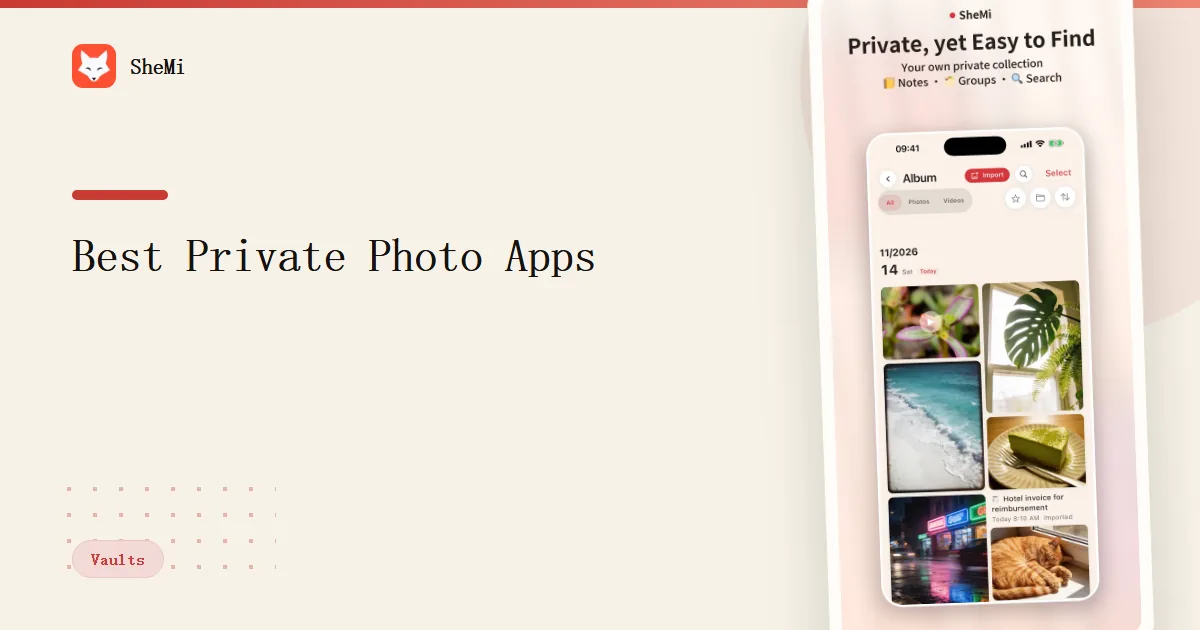
Looking for the best private photo app for iPhone usually starts with an app-store search and ends with a grid of near-identical vault icons. This guide inverts that: start from five checks that separate a real private photo app from a folder with a lock icon, then apply them to the categories you'll actually find. The short version: the differences that matter are not in the feature list — they're in the privacy label, the storage location, and the exit path.
Best private photo apps: the five checks that matter
| Check | What it separates | Where to look |
|---|---|---|
| Privacy label | Apps that monetize your data from apps that don't | App Store → App Privacy |
| Storage location | On-device vaults from cloud "vaults" | App description, offline test |
| Export path | Apps you can leave from apps that trap you | Settings, before importing anything |
| Permission scope | Sandbox cameras from library copiers | Settings → Privacy & Security |
| Business model | One price from a subscription attached to your photos | In-app purchase list |
Each check is verifiable in minutes, without installing anything. Taken together they answer the question the screenshots never do: what happens to a photo after it enters this app?
What the App Store privacy labels actually show
We read the App Store privacy labels of 18 photo apps — 15 privacy-focused ones and 3 mainstream apps as a control — and recorded what each declares. The results are in the privacy label comparison, and the headline numbers deserve repeating here:
- 9 of 15 privacy-focused apps declare data under "Data Used to Track You." For an app whose pitch is privacy, that's a red flag worth taking seriously.
- 6 of 15 declare data linked to your identity. Linked data is tied to an account you may not have known you had.
- 2 of 15 declare no data collection at all. It's possible — the label is the developer's own declaration to Apple, and some choose to declare nothing.
Labels are self-reported and not audited, so treat them as a floor, not a ceiling. But a label that declares tracking is a fact you can act on before installing — and it's information the screenshots never show.
The three categories you'll actually find
1. Library copiers
These import from your photo library and keep a second copy inside the app. Two things follow: the original stays in the camera roll (and in iCloud Photos if that's on), and deleting the app deletes the copies inside it. They solve "keep some photos out of casual sight," not "keep photos private." Most free vault apps are this category.
2. Cloud vaults
These upload your photos to the developer's servers, usually encrypted on their infrastructure. The trade is honest when stated: better recovery if you lose your phone, in exchange for your photos living on someone else's hardware. The check is the same as always — read what the label and the policy actually say about uploads, and decide whether you want your photos on that server at all. See how iCloud's own options compare for the Apple-side equivalent.
3. Sandbox cameras
These capture into the app's own storage, so photos never enter the camera roll in the first place. There is no original to delete afterwards, no copy for iCloud to sync, and nothing for another app with library permission to read. The privacy comes from architecture rather than from promises. This is what SheMi does — the camera writes straight into the app sandbox, and the photos stay on the device.
Which category fits your situation
If your photos are already scattered across the camera roll, a library copier or cloud vault meets you where they are — import, organize, and accept the trade that the originals remain in the library. If you are starting fresh, or if the photos are sensitive enough that no copy should ever exist outside the vault, a sandbox camera is the category that changes the question from "where do I hide these" to "they were never anywhere else."
Both are legitimate. What is not legitimate is choosing without knowing which category an app belongs to — which is exactly what the five checks at the top are for.
How to test an app before trusting it
- Read the label first. App Store → App Privacy. If a private photo app declares "Data Used to Track You," close the page.
- Run the airplane mode test. Install, turn on airplane mode, import or take a photo. A vault that works fully offline stores on your device; one that demands a connection stores somewhere else.
- Find the exit before you need it. Open settings and look for export. If there's no export path, the app owns your photos, not you. We covered the consequences in what actually exists for recovery.
- Check the purchase page. One price, or a subscription with a trial that holds your photos hostage when it ends? The free vault guide goes deeper into what "free" costs.
Frequently asked questions
What is the best private photo app for iPhone?
Depends on what you need. If photos already live in your camera roll, a vault app that imports and organizes them fits. If the goal is photos that never enter the roll at all, a sandbox camera is the category to look at — and the five checks above apply either way.
Are private photo apps safe?
That's two questions. Security against other people is usually fine — a passcode and Face ID do the job. Privacy against the developer is a different matter, and the answer is in the App Store privacy label and the storage model, not in the word "private" in the app's name.
Do private photo apps upload your photos?
Some do — cloud vaults exist precisely to upload. The label and the privacy policy say which is which. A sandbox camera app with no server has nothing to upload to, which is the stronger guarantee.
What happens to photos if I delete a private photo app?
If the app stored them in its own sandbox, they're deleted with the app. Export before uninstalling, or use Offload App instead of Delete — that keeps the app's documents in place.