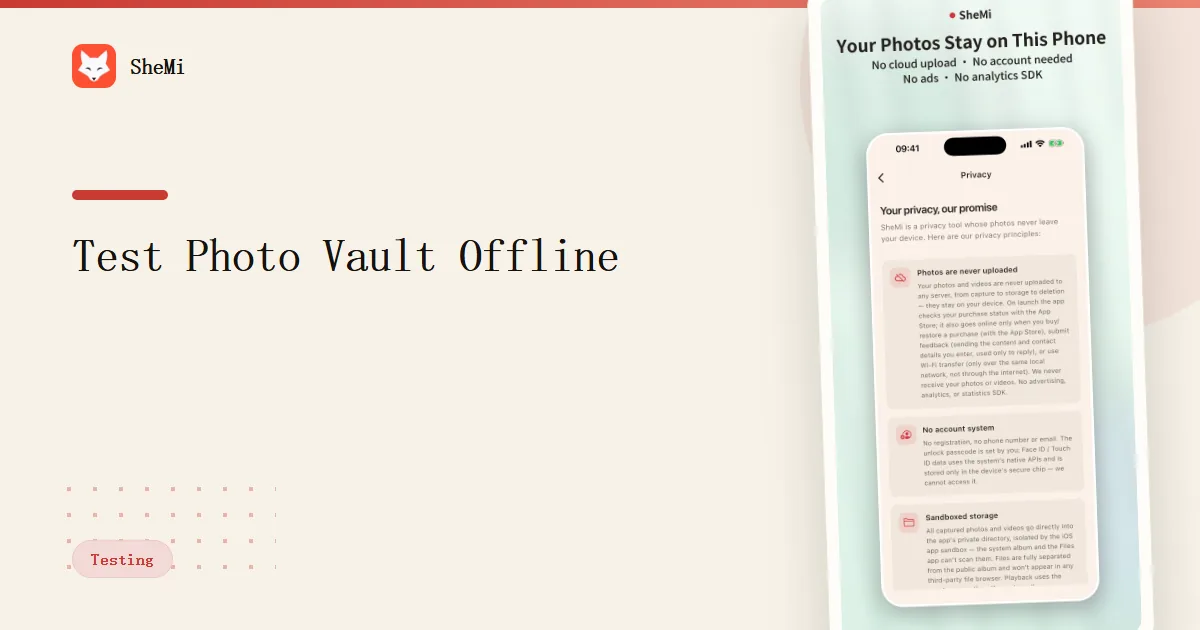
Test photo vault offline in five minutes with the airplane mode method — the fastest verification available to any iPhone user. Turn off every connection, then use the app; what happens next separates on-device vaults from apps that quietly depend on a server.
The airplane mode test is the fastest verification available to any iPhone user: turn off every connection, then use the app. What happens next separates on-device vaults from apps that quietly depend on a server, and it takes about five minutes.What the offline test proves — and what it doesn't
| Result | What it proves | What it doesn't prove |
|---|---|---|
| Fully usable offline | Photos are stored locally, not streamed from a server | That the app never uploads — it could sync later |
| Opens, but photos don't load | Content lives on the developer's servers | — |
| Won't unlock offline | Authentication depends on a server | — |
| Demands a connection to start | The app has no offline mode at all | — |
The test is a necessary condition, not a sufficient one. An app that works offline stores your photos locally; an app that doesn't, doesn't. But an app that works offline could still upload copies later — which is why the offline test is step one, and the privacy label is step two.
Test photo vault offline: the five steps
- Turn on airplane mode (Control Center → the airplane icon), then also switch off Wi-Fi — airplane mode alone doesn't always disable it.
- Open the app and unlock it. A vault that demands a connection before the passcode screen even appears is telling you something important.
- Open an existing photo. This is the critical step. Apps that store locally show the image instantly; apps that stream show a spinner or an error.
- Take or import a new photo. Capture works offline in any sane camera app — but some vault apps refuse imports without a connection, which is its own answer.
- Stay offline for a while, then go back online and watch. No traffic visible in Settings → Cellular (per-app usage) is a weak but free signal; the stronger check is the privacy label, which says what the developer declares about tracking and uploads.
Step 5 deserves a caveat: cellular-usage counters are not a privacy audit. They show data moved, not what moved. The privacy label is the developer's own declaration to Apple — self-reported, but at least a claim someone can be held to. We recorded 18 apps' labels in the privacy label comparison, and the headline is sobering: 9 of 15 privacy-focused apps declare data under "Data Used to Track You."
Reading the result honestly
The five steps take minutes, and the result deserves the same honesty you would want from any test: a pass means the app can live without a server, which is the architecture a private photo vault should have. It does not mean the app is incapable of phoning home — a vault could pass today and still be built to upload under conditions you cannot see from outside.
That is why this guide pairs the test with the label. The offline result tells you where the files sit; the privacy label tells you what the developer has declared about tracking and uploads. Taken together, they are the difference between trusting an app because it behaves well for five minutes and trusting it because its own declarations and its behavior point the same way. For the reverse problem — photos that entered the camera roll before you ever installed a vault — the cleanup question is separate, and the camera roll guide covers it.
Where the offline test fits among the other checks
The offline test answers where the photos live. Three more checks answer the rest of the question:
- The privacy label answers what the developer declares about tracking and linked data.
- The export path answers whether you can leave. Open settings before importing anything; if there is no export, the app owns your photos. The consequences are in the recovery guide.
- The permission footprint answers what else the app can touch. Settings → Privacy & Security shows exactly which categories an app asked for.
Together they cover the full picture: where the files live, what the developer says, whether you can leave, and what the app can reach.
Why a sandbox camera passes the test by design
An app that captures into its own sandbox passes the offline test from the first frame — the photos are written to app-private storage, so there is nothing to stream and nothing that needs a server to open. SheMi works fully offline: capture, browsing, and export need no connection at all, because the photos never leave the device in the first place. The app's network use is limited to the App Store purchase, feedback you choose to send, and local-network export — no photo uploads, no account, no analytics SDK.
That is the difference between passing the test as a design consequence and passing it as a feature toggle. Both pass the five minutes in airplane mode. Only one passes by not having anything to hide behind the toggle.
Frequently asked questions
How do I test if a photo vault app works offline?
Airplane mode, Wi-Fi off, then unlock, open an existing photo, and import a new one. If all of that works, photos are stored locally. Then check the privacy label for what the developer declares about tracking — offline usability proves local storage, not the absence of uploads.
Does working offline mean the app never uploads my photos?
No. An app can store photos locally and still upload copies when a connection returns. Offline usability is a necessary condition, not a guarantee. The privacy label is the stronger signal for uploads and tracking — it's the developer's own declaration to Apple.
Why would a photo vault app need the internet at all?
Legitimate reasons: verifying a purchase, syncing between devices, or cloud backup features. The question is whether your photos are the payload. A vault that works fully offline and declares no tracking is the configuration where that question has the most reassuring answer.
What should I check after the offline test?
Three things: the App Store privacy label (tracking and linked data), the export path in settings (can you leave with your photos), and the permission footprint in Settings → Privacy & Security. Together they tell you where files live, what the developer declares, and what the app can reach.